Use K3 as a power tool for AI for text, images, video and voice
Use K3 as a power tool for AI for text, images, video and voice

In early 2023, the K3 platform launched a Business Class version of ChatGPT, only a few weeks after OpenAI released GPT-3. Since then, we have relentlessly improved the K3 platform for AI use and helped our clients achieve productivity gains. Every week, there is something "new" on the AI horizon. It's hard for everyone to catch up. We at Klick Data move in line with what our large organisations need, delivering tangible, high-impact results. Above the hype.
This FAQ highlights key AI features in our LMS that benefit thousands of users every day. For your individual purpose. For the team. For the organisation. For the productivity of the enterprise.
Let's start with the most obvious. The basic AI feature we all have come to love is prompting an LLM.
1. Create an AI question in K3 with text-to-text
Text-to-text is possible in K3. This is the most common form of using AI. You ask a Large Language model a question of any sort, and you get a unique reply in return.
- A. Open AI symbol in the upper right corner.
- B. Write a Prompt.
- C. Chose model in the chevron on top of the Slide in.
- D. Send by clic the Create-button.
- E. Wait until the View button is lit up to view the reply.
See more on Create a Question with AI.
2. Create an AI image, photo or illustration in K3 with text-to-image
- A. Open AI symbol in the upper right corner.
- B. Write a Prompt.
- C. Clic on the Image symbol
- D. Chose model in the chevron on top of the Slide in.
- E. Send by clic the Create-button.
- F. Wait until the View button is lit up to view the reply in a Material. You will get two images from the LLM you chose. See in the Block and in the Extra Tab. You can also view them in the Image section in the Content menu.
3. Create an AI film in K3 with text-to-video
This option exists in K3, but is a bit hidden until you know it.
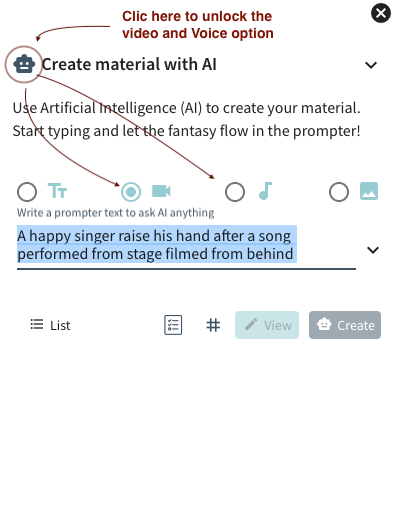
- A. Open AI symbol in the upper right corner.
- B. Write a Prompt.
- C. Clic on the AI symbol in the headline to unhide the options between the Text and the Image symbol. You will see the Video and Voice symbols. Choose the Video symbol.
- D. Chose model in the chevron on top of the Slide in.
- E. Send by clic the Create-button.
- F. Wait until the View button is lit up to view the reply in a Material. You will get a video from the LLM you chose. You can also view the film in the Video section in the Content menu.
4. Create an AI audio in K3 with text-to-voice
- A. Open AI symbol in the upper right corner.
- B. Write a Prompt.
- C. Clic on the AI symbol in the headline to unhide the options between the Text and the Image symbol. You will see the Video and Voice symbols. Choose the Voice symbol.
- D. Chose model in the chevron on top of the Slide in.
- E. Send by clic the Create-button.
- F. Wait until the View button is lit up to view the reply in a Material. You will get a voice from the LLM or Voice provider you chose. You can also hear the voice in the Voice section in the Content menu.
A1. In the upper-right corner, at the Headline baseline, we have added a chevron with a model selection option. For voice and audio, you can use Google AI Studio or Elevenlabs.
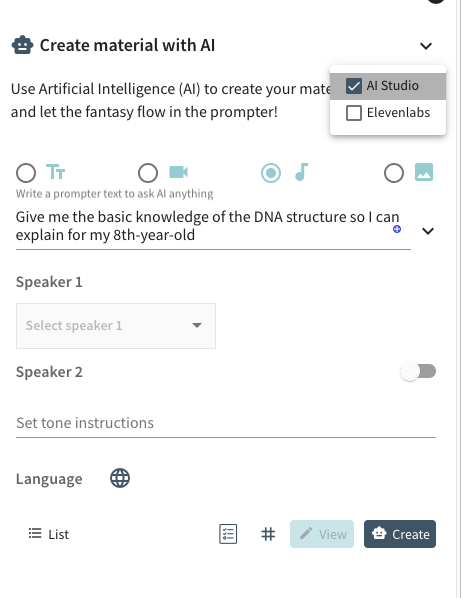
When you create a voiceover, you can select a specific voice from the audio model. We have added a few options to simplify this process. You can add two speakers having a dialogue. Choose also what language output you like to have.
1b. Create an AI text in K3 with text-to-text and use Deep Thinking or Deep Research
Once you learn about our hidden power features, you will also discover that we have added powerful tools for voice and video.
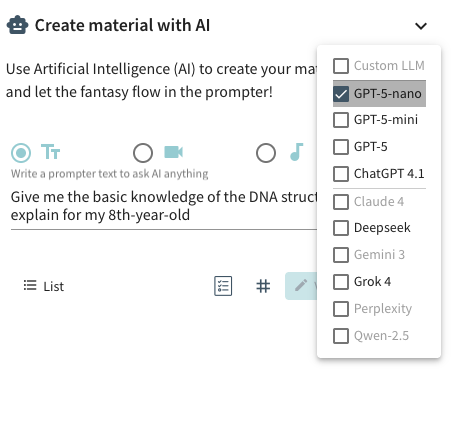
When you clic on the symbol before the headline, you can send the same prompt to get multiple replies from different Large Language Models.
Since publication, some information and screenshots may have been updated or modified, as we update our online learning platform several times a week.


